How to Install wkhtmltopdf/wkhtmltoimage on Hostinger (and Similar Shared Hosting)⎘
Tested: August 8, 2025
Use case: Hostinger + Laravel + Snappy or any wrapper that needs wkhtmltopdf / wkhtmltoimage
This guide shows how to run wkhtmltopdf and wkhtmltoimage on shared hosting (e.g., Hostinger) by uploading precompiled Linux binaries into your Laravel project and pointing Snappy to them.
1) Download the Linux Binary⎘
Download the precompiled Linux binary from the official releases page:
wkhtmltox-0.12.4_linux-generic-amd64.tar.xz
Release URL (reference):
Notes:
- This is a Linux amd64 build. Use the appropriate build for your server architecture if different.
- Shared hosting commonly runs Linux on amd64, but always verify if you can.
2) Extract the Files (Local Machine)⎘
On your local machine, extract the .tar.xz archive (e.g., with WinRAR, 7-Zip, or similar).
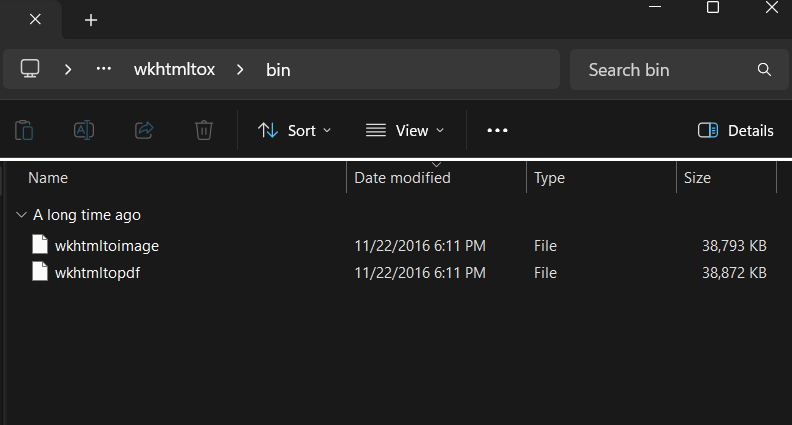
Inside the extracted folder, locate the wkhtmltox/bin/ directory. It should contain files:
wkhtmltopdf(no file extension)wkhtmltoimage(no file extension)
3) Upload to Your Laravel Project⎘
Upload the bin folder to your Laravel project on Hostinger via FTP (or File Manager).
Example project structure:
/your-laravel-project/├── app└── binary/ └── wkhtmltox/ └── bin/ ├── wkhtmltopdf (file, no file extension) └── wkhtmltoimage (file, no file extension)├── config├── public└── ...You can name the folder anything, but keep it consistent with your
.envpaths.
4) Configure Snappy in Laravel⎘
In your Laravel Snappy config file (commonly config/snappy.php), set the binary paths via environment variables.
Example:
return [    'pdf' => [        'enabled' => true,        'binary'  => env('WKHTML_PDF_BINARY'),        'timeout' => false,        'options' => [],    ],
    'image' => [        'enabled' => true,        'binary'  => env('WKHTML_IMG_BINARY'),        'timeout' => false,        'options' => [],    ],];
Then, in your .env file, set the absolute paths (update to match your Hostinger home directory + project path):
WKHTML_PDF_BINARY=/home/u000000000/domains/your-domain.com/binary/wkhtmltox/bin/wkhtmltopdfWKHTML_IMG_BINARY=/home/u000000000/domains/your-domain.com/binary/wkhtmltox/bin/wkhtmltoimageReplace:
u000000000with your hosting account user idyour-domain.comwith your domain- the remaining path with where you uploaded the binaries
5) Set Execute Permissions⎘
Via SSH (PuTTY), run:
chmod +x /home/u000000000/domains/your-domain.com/binary/wkhtmltox/bin/wkhtmltopdfchmod +x /home/u000000000/domains/your-domain.com/binary/wkhtmltox/bin/wkhtmltoimage6) Test the Installation⎘
Verify the binaries run and confirm versions:
/home/u000000000/domains/your-domain.com/binary/wkhtmltox/bin/wkhtmltopdf --version/home/u000000000/domains/your-domain.com/binary/wkhtmltox/bin/wkhtmltoimage --versionIf permissions and paths are correct, you should see output showing the wkhtmltopdf version.
7) Clear Laravel Caches⎘
Clear caches to ensure Laravel reads updated config:
php artisan view:clearphp artisan cache:clearphp artisan optimize:clearDone⎘
✅ Done! You can now use wkhtmltopdf and wkhtmltoimage within your Laravel application on Hostinger (or similar shared hosting).
Troubleshooting⎘
Permission denied⎘
- Re-run the
chmod +xcommands. - Confirm you’re editing the correct path.
“Binary not found” or Snappy fails to execute⎘
- Double-check the absolute path in
.env. - Ensure the file names are exactly
wkhtmltopdf/wkhtmltoimage(case-sensitive on Linux).
Blank PDFs / missing assets⎘
- Use absolute URLs for images/CSS, or ensure your assets are publicly accessible.
- Consider enabling Snappy options like
--enable-local-file-accessif needed (be mindful of security).
Security Notes⎘
- Avoid enabling unrestricted local file access unless necessary.
- Only allow trusted HTML templates to be rendered to PDF.
Comments & Reactions
(click to open)