Install Laravel on Ubuntu on Windows 11 Using Docker⎘
PROCESS⎘
1. Install WSL (Ubuntu)⎘
- Run PowerShell as Administrator, then:
wsl --installFollow the prompts to install Ubuntu.
2. Update Ubuntu Packages⎘
sudo apt update && sudo apt upgrade -y3. Install PHP 8.2 (or any version you need)⎘
Run the following commands:
sudo apt update
sudo apt install software-properties-common ca-certificates lsb-release apt-transport-https
sudo add-apt-repository ppa:ondrej/php
sudo apt update
sudo apt install php8.2-cli php8.2-common php8.2-mbstring php8.2-xml php8.2-bcmath php8.2-curl php8.2-mysql php8.2-zip php8.2-readline php8.2-gd php8.2-intl php8.2-tokenizer php8.2-soap
4. Download & Install Docker for Windows⎘
- Create an account: https://login.docker.com/u/login
- Download: https://docs.docker.com/desktop/setup/install/windows-install
5. Configure Docker⎘
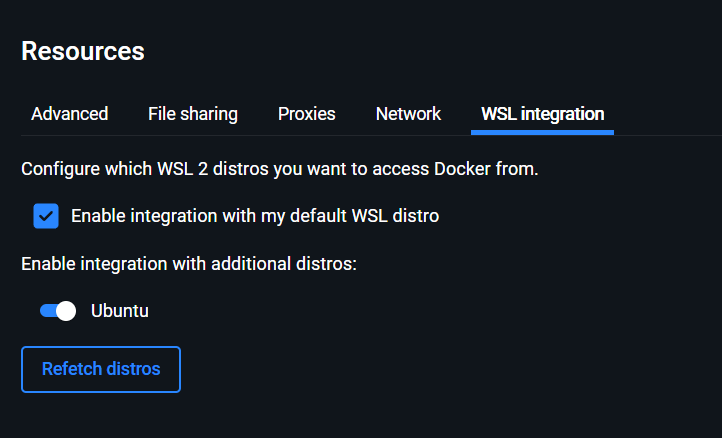
- Open Docker Desktop
- Go to Settings → Resources → WSL Integration
- ✅ Turn on Ubuntu
6. Test Docker via Ubuntu Command Line:⎘
To Check if Docker is installed correctly, run:
docker --versionTo test Docker by creating a cxample image (for testing only), run:
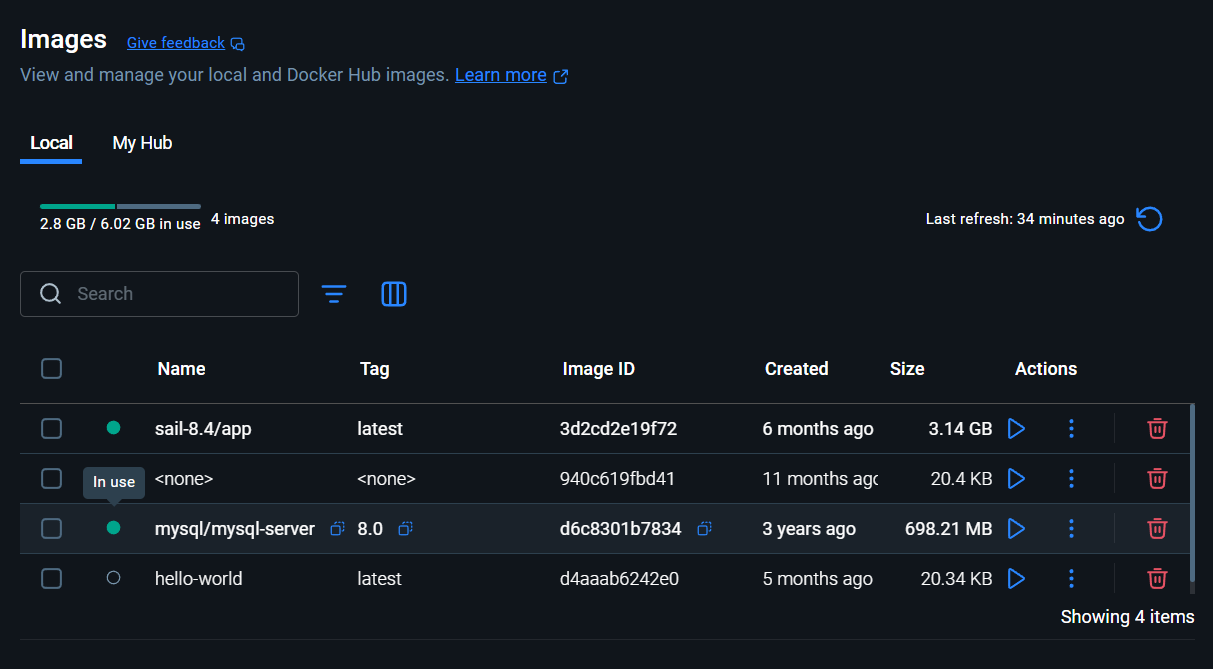
docker pull hello-world
A new 'hello world' image has been created inside of your Docker image
If you get permission denied, run:
docker login -u yourDockerUsernameThen Generate a New Personal Access Token at: https://app.docker.com/settings → Personal Access Tokens → Generate New Token, then re-run the login if needed.
After Re-login and Generating, add user to Docker group:
sudo usermod -aG docker $USERThen re-open Ubuntu Command Line, and test again, via:
docker pull hello-world7. Create Main Laravel Projects Directory⎘
In Ubuntu Command Line, go to your
home directory:
cd ~Create a MAIN FOLDER for your Laravel projects:
mkdir LaravelProjectsWhy this folder?
LaravelProjectswill serve as your main workspace for all Laravel projects, so everything stays organized in one place. You can name it anything or skip this step, but using one dedicated folder is recommended.
To go inside of the
LaravelProjectsdirectory, run:
cd LaravelProjects8. Create a Laravel Project⎘
composer create-project laravel/laravel firstwebsiteTo go inside of the project folder, run:
cd firstwebsiteCommand Line Tips:
- To go back:
cd .. - To list directories:
ls -d */or typels
9. Install Laravel Sail⎘
composer require laravel/sail --devNext: After the following installation, run:
php artisan sail:install10. Open Project in VS Code⎘
code .Trust the folder when prompted.
BUT, Before running our Laravel project in Docker, we need to configure the
.envfile and set up thedatabase.
11. Configure .env File⎘
Edit your .env:
DB_CONNECTION=mysqlDB_HOST=mysqlDB_PORT=3306DB_DATABASE=firstwebsiteDB_USERNAME=sailDB_PASSWORD=password
FORWARD_DB_PORT=3308
use
3308(or any, not 3306) forFORWARD_DB_PORTto avoids conflict with the host’s MySQL when using Docker.
12. Run Migrations⎘
./vendor/bin/sail artisan migrate13. Verify Database Using GUI⎘
Use DBeaver or MySQL Workbench with the following settings:
Host: 127.0.0.1Port: 3308User: sailPassword: password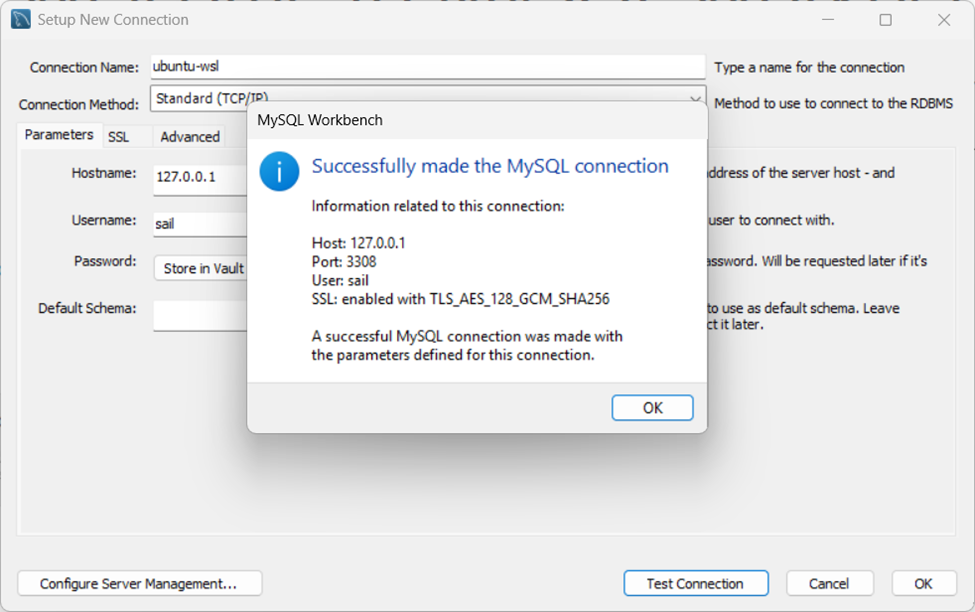
If checking the database fails, run the command
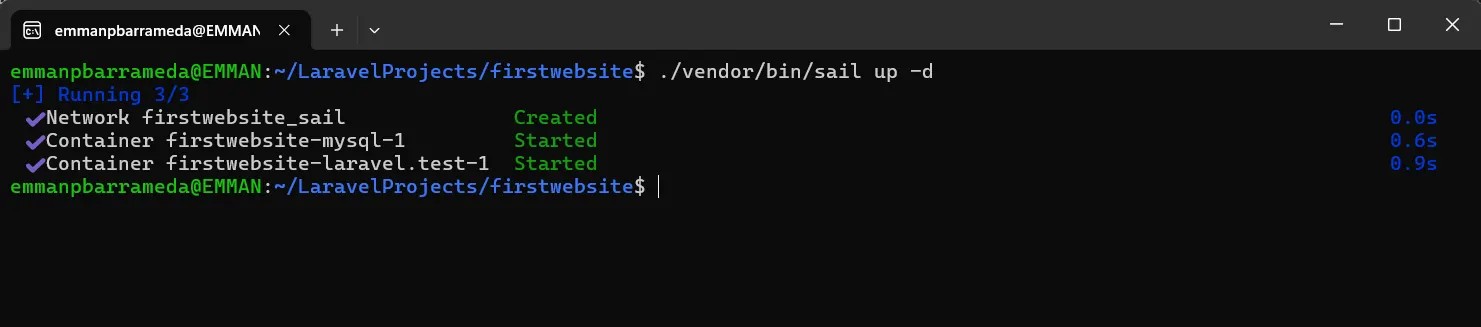
./vendor/bin/sail up -dinside your Laravel project, then check again.
14. Run Laravel Sail⎘
# to start laravel server./vendor/bin/sail up -d
# or to stop laravel server./vendor/bin/sail down
# or to verify if running./vendor/bin/sail ps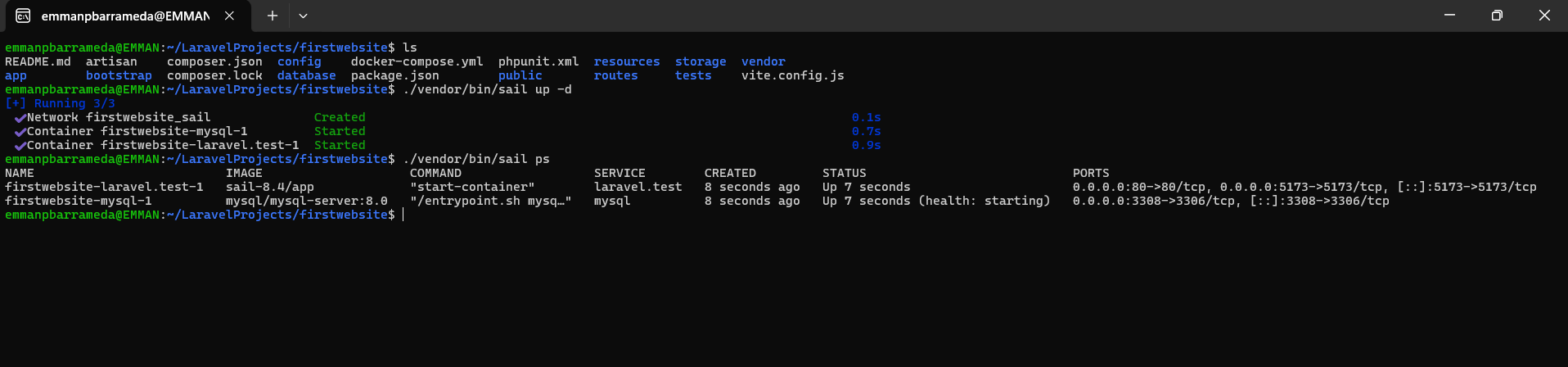
15. Access Laravel in Browser⎘
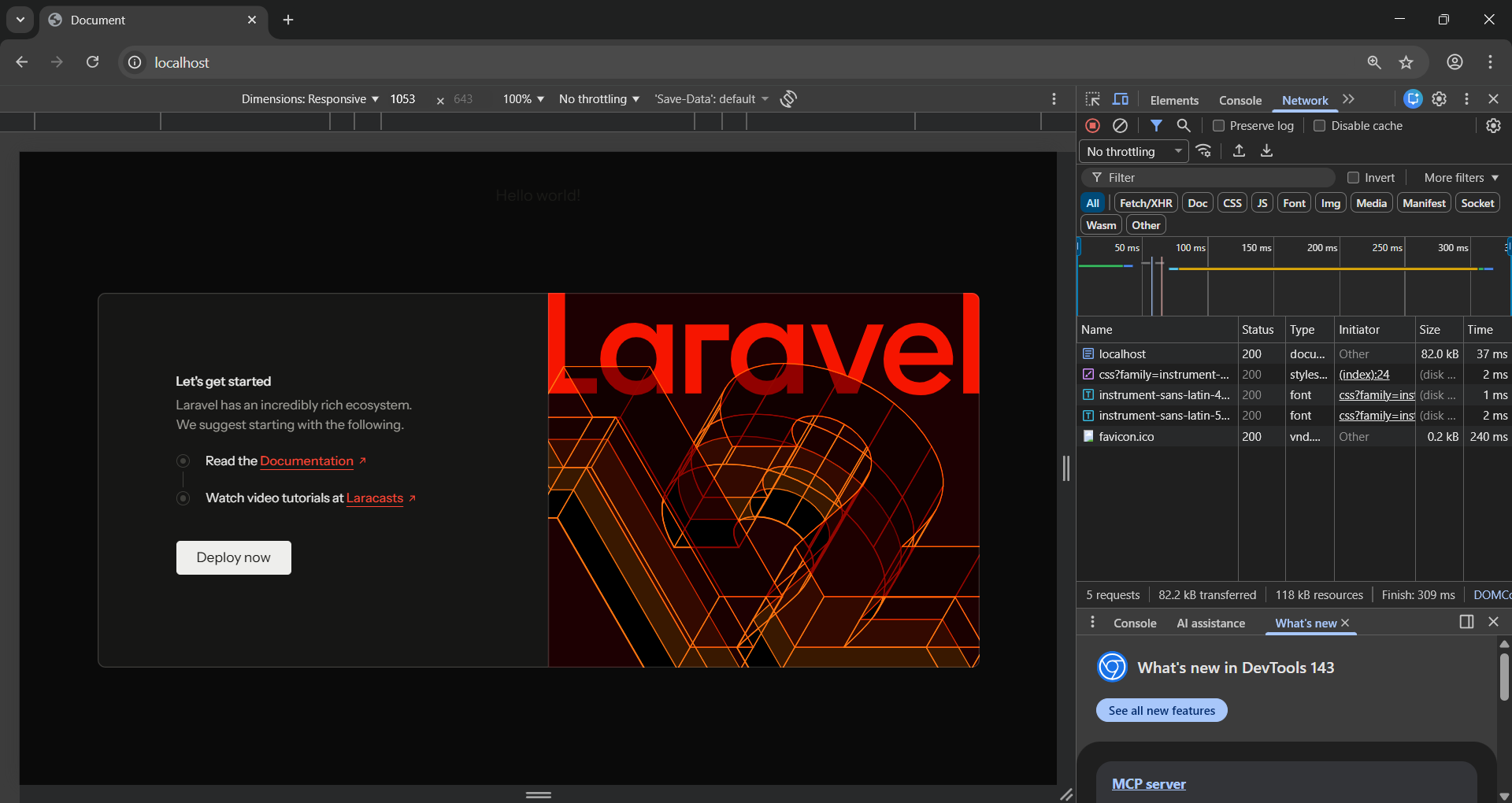
Make sure it’s running:
./vendor/bin/sail up -dThen open:
DONE!⎘
✅ Done! Laravel is now running inside Docker with Ubuntu on WINDOWS 11.
Comments & Reactions
(click to open)